 ReefDeck
Open the free logbook
ReefDeck
Open the free logbook
Exporting and Analysing Apex / GHL Controller Data
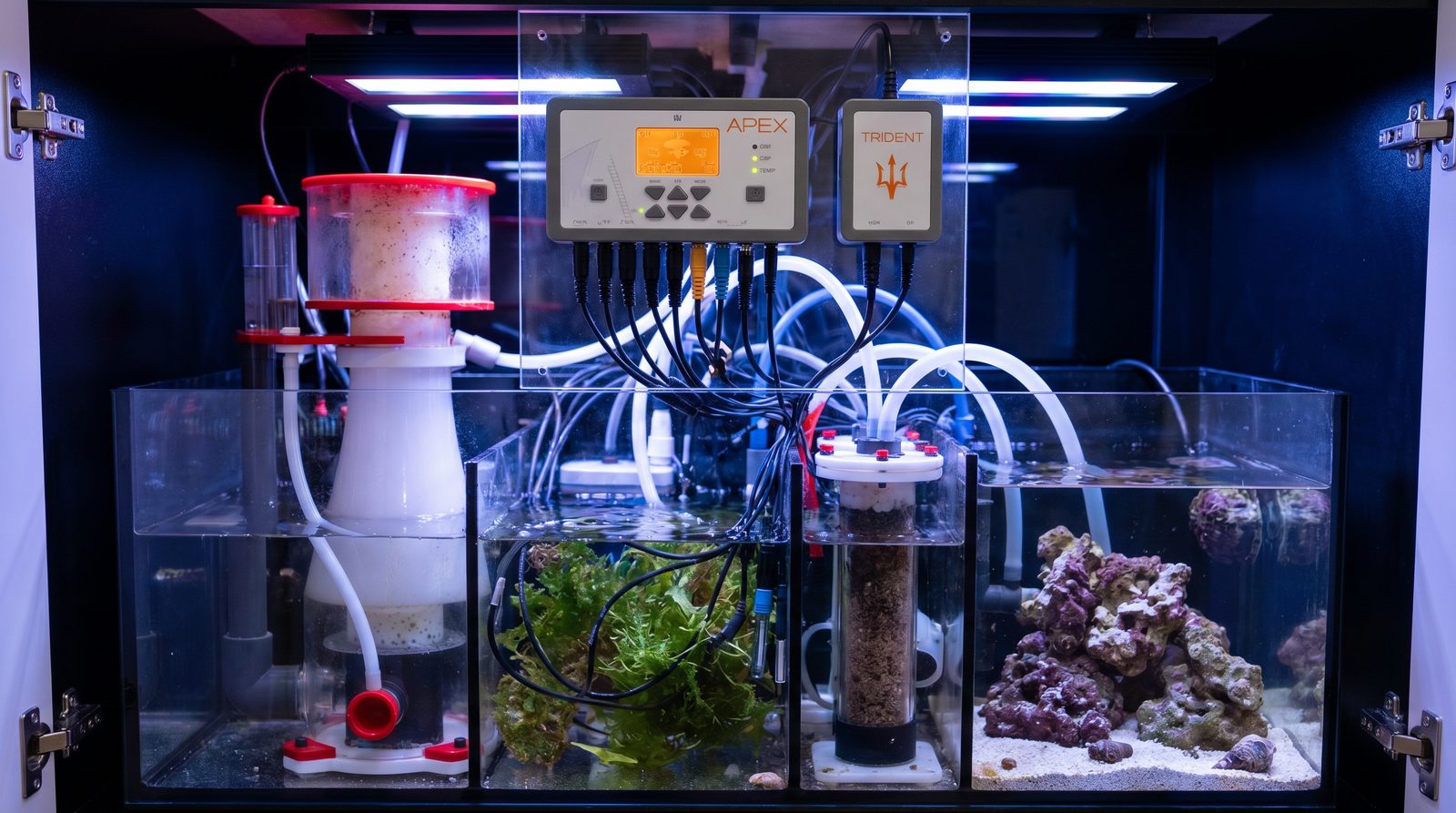
Aquarium controllers like the Neptune Apex and GHL ProfiLux log probe readings — temperature, pH, ORP, conductivity — every one to five minutes, producing thousands of data points per week. Exporting this as a CSV file and importing it into a logbook gives you a continuous trend line that no weekly test schedule can match. ReefDeck accepts Apex and GHL CSV exports, including EU decimal-comma format, and merges them with your manual parameter entries.
Hobbyist aquarium controllers were originally sold as automation devices: run a return pump at a set time, switch lighting on a schedule, trigger an alert if temperature climbs too high. That is still what most people use them for. What often goes unappreciated is that a modern Apex or GHL ProfiLux is also a continuous data logger — one that has been quietly recording your tank's temperature, pH and other probe readings every few minutes since the day you installed it. That history is stored, exportable, and genuinely useful if you know where to find it.
What controller probes log and why it matters
The exact probes depend on your configuration, but a typical controller setup captures:
- Temperature — usually logged every minute; reveals daily fluctuation, equipment failure events, and summer heat creep far more clearly than spot checks.
- pH — the most diagnostically rich continuous reading. pH naturally rises through the day as zooxanthellae photosynthesise and CO₂ is consumed, then falls at night. A compressed or inverted pH curve is one of the earliest signs of a CO₂ or alkalinity problem.
- ORP (oxidation-reduction potential) — a proxy for overall water quality; useful for spotting acute events like a dead animal or a skimmer failure.
- Conductivity / salinity — on units fitted with a conductivity probe, this tracks salinity drift between water changes and flags a failing ATO.
None of these readings is a substitute for a calibrated manual test — pH probes drift, conductivity probes need regular cleaning, and ORP is more useful as a relative trend than an absolute value. But the continuous nature of the data is something no manual test schedule can replicate. You might test alkalinity three times a week; your controller logs temperature 1,440 times a day.
Exporting data from a Neptune Apex
Neptune Apex data is accessible through the Apex Fusion web interface or, for locally networked units, via the Apex's own web page.
- Log into Apex Fusion at apexfusion.com and select your system.
- Navigate to Dashboard, then open the Graph view for the probe you want to export.
- Use the date-range selector to choose your export window — up to 90 days is typical per export.
- Click Export or Download CSV (the exact label depends on your firmware version). The file downloads as a plain comma-separated file with a timestamp column and a value column.
- Repeat for each probe (temperature, pH, ORP) if you want a combined dataset — you will have one CSV per probe.
Exporting data from a GHL ProfiLux
GHL controllers store data locally on the unit and synchronise with the GHL cloud service. Export options depend on whether you use GHL Connect (the local PC/Mac software) or the cloud dashboard.
- Open GHL Connect (desktop) or log into the GHL cloud portal at ghl-aquariumtechnology.com.
- Select your controller and navigate to Measurements or Diagrams depending on your software version.
- Choose the parameter and date range you want.
- Click Export. GHL exports a semicolon-separated CSV file with a date-time column and values in your unit's locale format — this may use a decimal comma (e.g. 25,4 rather than 25.4) on European-locale systems.
- Save the file. If you are using ReefDeck's import, the EU decimal-comma format is handled automatically — no manual conversion needed.
Why controller data alone is not enough
A controller's continuous log is excellent at capturing what happens between your manual tests. What it cannot do is measure the parameters that matter most for coral chemistry: alkalinity, calcium, magnesium, nitrate and phosphate. No reliable, affordable continuous probe exists for these. That means the complete picture of your reef always requires two data streams: the controller's automated probe history for temperature and pH trends, and your manual test log for the chemistry that drives coral growth.
When you combine both, you gain the ability to make connections that neither source alone reveals. If your pH trend over three weeks shows a steadily compressed daily swing — the high is dropping and the night low is also dropping — that is a reliable early-warning sign of rising dissolved CO₂, often caused by reduced gas exchange in a sealed room. Spotting it early, before alkalinity destabilises, is only possible because the controller was logging continuously while your weekly chemistry tests gave you no signal yet.
Importing into a logbook and reading the merged trends
The practical value of exporting controller data comes when it sits in the same timeline as your manual test results. In a spreadsheet this requires manual alignment and custom charting. In a purpose-built reef logbook the merge is direct: drop in the controller CSV and your manual entries appear on the same axis.
When you review the combined data, look for relationships rather than isolated events. A pH dip coinciding with an alkalinity drop three days later is a pattern that suggests a dosing shortfall — the controller caught the early signal, the chemistry test confirmed it. A temperature spike on a day when you recorded elevated nitrate the following week might point to an overheating event that stressed the tank and shifted bacterial activity. These connections are what make logging worth the effort.
ReefDeck imports Apex and GHL CSV exports directly, including EU decimal-comma files, and stores the controller data as timestamped readings alongside your manually entered parameters. You do not need to reformat the file or combine CSVs manually — paste or drop the export and the logbook handles the rest.
Import your controller CSV into ReefDeck
ReefDeck's CSV import accepts Apex and GHL exports directly — EU decimal-comma format included. Drop in your controller history alongside your manual alkalinity and nutrient tests to get the complete picture in one place. Free, offline, no account needed.
Open ReefDeck — it's free → Works on phone and desktop · installs as an app · exports to CSV anytimeFrequently asked questions
Can I export data from a Neptune Apex without an Apex Fusion account?
Yes. Connect to your Apex's local IP address on your home network (visible in the Fusion app under System > Network) and navigate to the Log section. The CSV download is available there regardless of cloud connectivity, and the file format is identical to the Fusion export.
My GHL export uses commas as decimal separators — will that cause errors in a logbook?
GHL ProfiLux units configured for European locales export CSV files with semicolon column separators and decimal commas (e.g. 25,4 rather than 25.4). ReefDeck's CSV import handles this format automatically. If you are using a spreadsheet, open the file with your locale set to match the decimal format, or use the spreadsheet's import wizard to specify the separator manually.
How often should I export controller data?
Monthly exports are sufficient for most hobbyists. Apex Fusion stores up to 90 days of data per probe; GHL retention depends on your device storage and cloud sync settings. Export before the oldest data rolls off. If you have a specific concern — a recent temperature event, a gradual pH decline — export the relevant window immediately while the data is still available.
My controller pH probe reads differently from my manual pH test kit — which should I trust?
Calibrate the probe regularly (at least monthly) using fresh two-point calibration solution and verify against a recently calibrated hobby kit. A freshly calibrated probe with clean solution junction is typically more accurate than a colorimetric kit. However, the probe's continuous trend data is often more useful than the absolute value: a probe that reads 0.1 pH units low will still reveal a genuine trend accurately, provided the offset is consistent.